More about audio sync, using
avidemux, AI for help

-
*******************************************
Steps to Sync Audio with Avidemux
Initial Setup
Open Avidemux: Launch the Avidemux application on your computer.
Load Your Video File: Go to File > Open and select the video file you want to edit.
Adjust Audio Settings
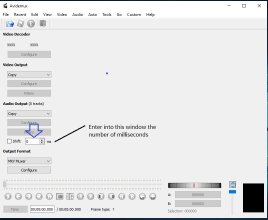
Enable Shift Option: In the Audio output settings, check the box for the "Shift" option. This allows you to adjust the audio timing.
Set Video and Audio Output: Ensure that both Video output and Audio output are set to "Copy". This prevents re-encoding and maintains the original quality.
Determine Sync Adjustment
Test Playback: Play the video and observe the sync between audio and video.
Adjust Timing:
If the audio is ahead of the video, enter a
positive value (e.g., 200 ms) in the Shift box to delay the audio.
If the audio is behind the video, enter a
negative value (e.g., -200 ms) to advance the audio.
Save Your Changes
Save the Edited Video: Once you are satisfied with the sync, go to File > Save > Save Video... or press Ctrl+S. Choose a name and location for your file.
Tips for Accurate Sync
Start with small adjustments (around 200 ms) and test playback after each change.
Use visual cues in the video, like claps or other sounds, to help determine the correct sync value.
By following these steps, you can effectively sync audio with your video using Avidemux.