

AI Video Generation - General Discussion, Tips, Tricks, Frustrations and Showcases

  • Like
Reactions: CoolKevin
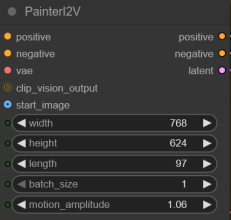
Here are two workflows attached. The first is using the swap out of the WanImageToVideo node for the PainterI2V node that helps produce better movement. It also uses smaller GGUF models since I have a 3060 with 12GB VRAM. That's for generating the main video. The second workflow is for the interpolation to 60fps. The main workflow already has something in there to go from 16fps to 30fps (I don't understand that part, BUT, I do recall being able to turn 23.976 into 60fps back in the day)

Just rename the files from *.txt to *.json

60fps_PainterI2V.png


In the main workflow, the bottom element of the PainterI2V node, montion_amplitude, is what you adjust for movement stability. I've found anything over 1.15 introduces things like unwanted transition animations. Maybe it's the images I'm using, so I keep it between 1.06 and 1.15 (the recommended).

1764446509687.png
 

Attachments

EDIT! Yikes, I completely forgot to move the prompts to the main GUI! Will follow up with new workflow and will attach here!
EDIT 2! Done!

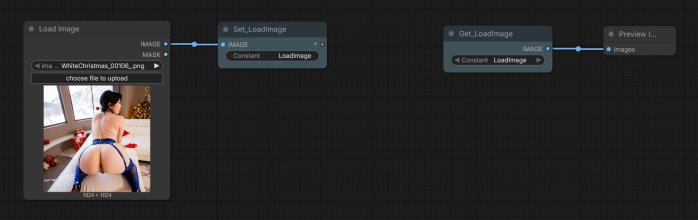
I discovered the Set and Get nodes in ComfyUI! Wow, what a difference they make in putting together a cleaner environment to work with. I do not have OCD but I was getting tired of all the spaghetti connections among the nodes being used. I first found how to make the node connections linear instead of curved (creating the spaghetti effect) and then got happier when I found the Set and Get Nodes. These are great. You create a Set node, connect an output from a source node to it, then, that source node's output can be placed anywhere else in the Workflow using the Get node. It's like a wormhole for nodes. :D

Here is an example to hopefully explain that visually, likely WAY better than how I just worded that! :p Just give that Constant of the Set node a name and in any of the Get nodes you add in your Workflow it will be available. You would use the Left/Right arrows on the Get node to cycle through the available options you've created.

SetGetExample.jpg

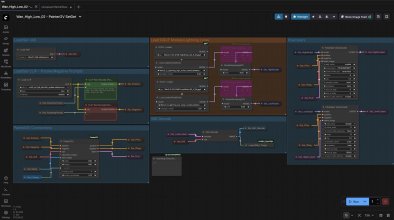
Using that, I have now moved all the engine nodes into one big area that uses these Set and Get nodes heavily, so that I can have a clean interface to drop images for video generation. I even used them along with the Integer (Int) node so that I can control the number of frames away from all the engine nodes so I don't have to drag my way to that WanImageToVideo or PainterI2V Node for changes. And I added a reminder in a Notes node as to how many frames make up how many seconds (if you can spot that in these images). OH, also, I'm using the collapsible feature of some nodes to save space and make it that much more clean, especially those that I will not be tinkering with and are rather static. Those would be the long pill shaped nodes.

Here are the engine nodes.
SetGetWorkflow_01.jpg

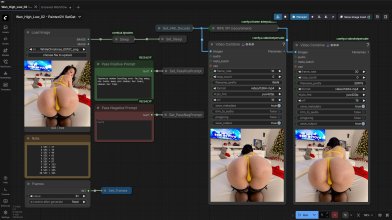
Here are the Image and Video Combine nodes I position to the right of the engine. This is what I work with and only drag my way over to the engine if I need to. Here it is just drop the image, change the frames if I need to, and click Run.
SetGetWorkflow_02.jpg

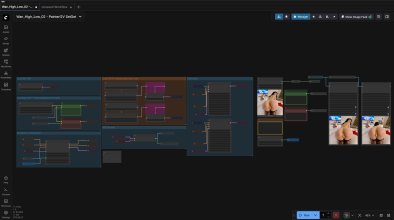
Here is the whole Workflow if I zoom out to show everything at once. I simply zoom in/out to see/change what I need.
FullWorkflow.jpg

I've attached the Workflow for anyone that might want to use it as a guide to create something to your liking. It's not advanced, and probably isn't even efficient to some out there (HAHA! I just thought of that!), but it's been keeping me sane the last two days I've been using it after getting it how I like it. Just change the extension from *.txt to *.json and drag it onto the ComfyUI canvas. Use the Manager to intstall any missing Nodes if you intend to use, otherwise ignore to take a look around at how things connect.

Let me know if I can answer any questions! This is using Wan 2.2, BTW...
 

Attachments

Last edited:
  • Like
Reactions: CoolKevin
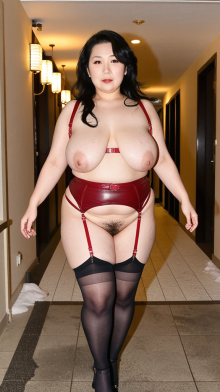
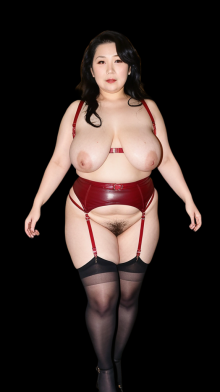
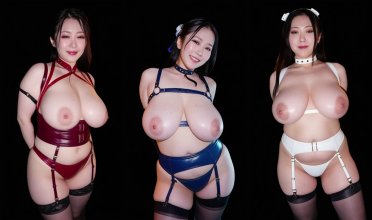
It was a joy using this simple Workflow to once again bring to life some Christmas MILFs that I can't stay away from. Now, these are 3 second clips joined together. Due to their size (1280x960) they took around 45-46 minutes to generate each, so I let them cook while I did other things. I have no idea if my box would have been able to produce them at 5 seconds each. I may try one night, but don't like having my workstation held up and crawling for resources when they take that long. At 640x480 these same images to 5 second clips took around 7 minutes each. BUT...I wanted to give these cuties some justice in some type of HD before sharing them. :cool:

Taken from the images in this thread:
https://www.akiba-online.com/threads/photorealistic-ai-generated-images.2123060/page-49#post-4949674

Here is a 24 second look at these ladies:
 
  • Like
Reactions: CoolKevin
Well...my nice GUI is looking a little crowded now, but that's my fault for forgetting about the prompts. I guess because all day I had been working on these videos, so the prompt never changed, just the input images. Now that I've used Text Boxes and more Set/Get nodes to put them in the GUI space, I've lost empty real estate, BUT, I still like that all I have to tinker with AND see at all are the prompts, the input images, and the frame count. :p

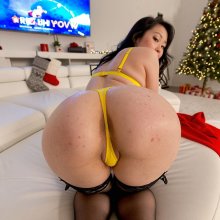
At any rate, I've updated the images in the post as well as the Workflow (after testing it). BTW, used an ass-centric image for this one, here's how it came out. 640x640 so it won't be as nice as the earlier examples.

Source Image
ac.jpg

Video Output
 
  • Like
Reactions: CoolKevin